
Don’t panic, but it’s worth keeping an eye on it
If your business uses Microsoft 365, there’s a good chance SharePoint is storing far more of your information than you realise.
Documents shared through Teams, company files, departmental folders and other shared information can all live in SharePoint behind the scenes.
Normally, that just works. But like any storage system, SharePoint isn’t unlimited, and as businesses accumulate more data over the years, some are starting to get surprisingly close to their available allowance.
The good news is that this is usually something that can be dealt with relatively easily, particularly if it’s spotted early.
So, how does the storage allowance work, and when should you start paying attention?
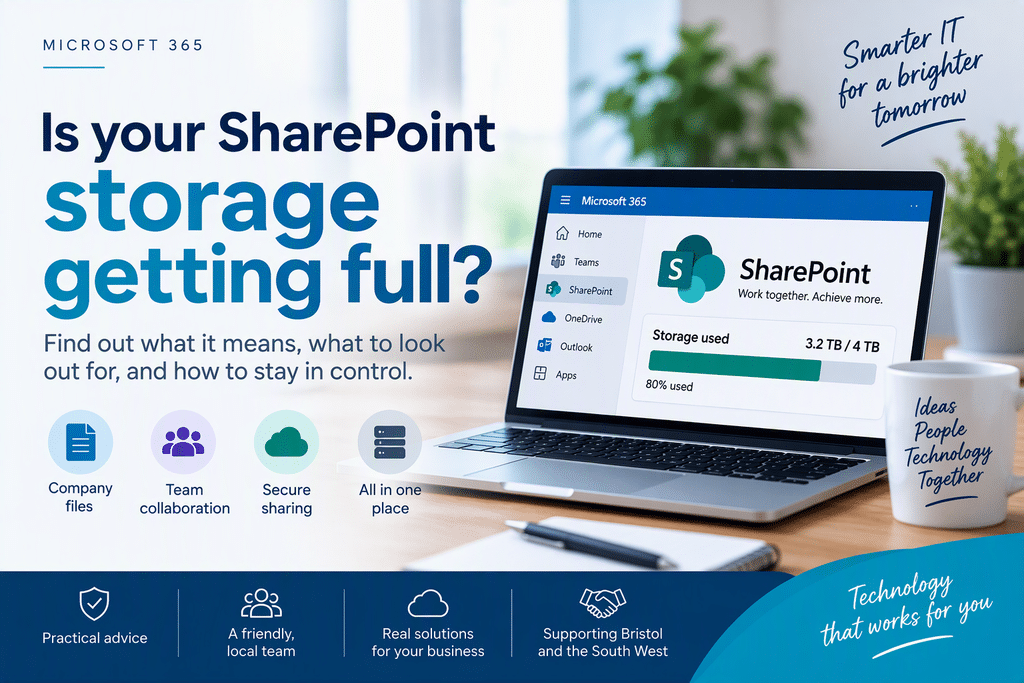
How much SharePoint storage do you get?
For Microsoft 365 Business Basic, Standard and Premium, Microsoft currently lists the organisation’s SharePoint storage allowance as:
1 TB of storage, plus 10 GB for each qualifying licence purchased.
As a rough guide:
| Number of licences | Approx. SharePoint storage |
|---|---|
| 10 | 1.1 TB |
| 25 | 1.25 TB |
| 50 | 1.5 TB |
| 100 | 2 TB |
| 200 | 3 TB |
| 300 | 4 TB |
The important bit is that this is shared storage across the organisation, rather than each employee receiving their own 1 TB SharePoint allowance.
For most smaller businesses, that’s a healthy amount of space. But if you’ve been using Microsoft 365 for a number of years, it’s certainly worth checking how much you’ve accumulated.
What happens if you reach the limit?
Firstly, there’s no need to panic if you’re getting close.
Approaching the limit doesn’t mean your files are suddenly going to disappear.
However, it isn’t something we’d recommend ignoring either.
Microsoft’s documentation says that an organisation continuing to operate above its SharePoint storage limit is at risk of the environment being placed into read-only mode. In practical terms, users could then find that they can see their information but are unable to add or change content until the storage issue is resolved.
That’s obviously something we’d rather help a client avoid.
Is there a grace period?
This is where there’s understandably been some confusion.
You may find that SharePoint continues working normally after you’ve moved above your storage allowance.
That shouldn’t, however, be taken to mean you’ve permanently gained some extra storage.
Microsoft’s public documentation confirms what can happen when the storage allowance is exceeded, but it doesn’t specify a standard grace period before restrictions may be applied.
So our advice is simple:
If you’re over the limit and everything is still working, use that opportunity to sort out the storage rather than waiting for it to become a problem.
There’s normally no reason for drama. It simply needs investigating.
“But we don’t have anywhere near that many files!”
This is something we can imagine hearing quite a lot.
You look at your folders and documents and wonder:
“How on earth are we using that much storage?”
The answer can sometimes be file history.
SharePoint can retain previous versions of documents as they’re changed over time. Microsoft explains that reported storage can therefore include version history and other storage associated with files, meaning the amount of SharePoint storage being consumed can be higher than simply adding up the latest files you can see.
This is useful functionality. Previous versions can be extremely helpful when somebody accidentally changes a document or you need to recover earlier information.
But over time, all those versions can contribute to your storage usage.
Other areas worth reviewing can include:
- Old SharePoint sites that are no longer used
- Historical file versions
- Information that could be archived
- Retention settings
- Items sitting in SharePoint Recycle Bins
So before simply purchasing more capacity, it’s sensible to understand what is actually using the space.
Is this a new Microsoft limit?
Not really.
The underlying SharePoint storage allowance itself isn’t new.
Microsoft currently documents the allowance for Microsoft 365 Business subscriptions as 1 TB plus 10 GB for each qualifying licence purchased.
What we’re increasingly conscious of is the importance of businesses actually monitoring it.
As more companies move data from traditional servers into Microsoft 365, their SharePoint environments naturally grow.
Five or ten years of Teams, shared documents, project information and previous file versions can add up.
So we’d treat SharePoint storage much like we used to treat the disk space on a business file server:
Plenty of capacity is great. Just don’t wait until it’s completely full before checking it.
What should you do if you’re getting close?
If your SharePoint storage is filling up, there are several options.
Find out what’s using it
The first step is simply to understand where the storage has gone.
It might be legitimate business information, but equally there could be old sites, historical versions or other content contributing to the total.
Review old information
There may be SharePoint sites, Teams or documents from completed projects that are no longer actively needed.
That doesn’t automatically mean they should be deleted. Some information will need to be retained, but it may be suitable for archiving instead.
Microsoft lists reviewing inactive content and using Microsoft 365 Archive amongst the options for managing SharePoint storage.
Look at version history
Previous versions can be useful, so we wouldn’t recommend simply deleting them without understanding the impact.
However, Microsoft provides options for managing and trimming older versions as part of its SharePoint storage guidance.
Add more storage if you genuinely need it
And sometimes there isn’t anything wrong at all.
Your business may have simply grown and you’re using more Microsoft 365 storage because you have more people, more documents and more information.
If the data is useful and needs to remain available, Microsoft provides options for purchasing additional SharePoint storage.
Our advice: check it before it becomes urgent
For most businesses, this isn’t something to lose sleep over.
But it is worth knowing where you stand.
If you’re comfortably within your allowance, great.
If you’re beginning to approach it, you’ve got an opportunity to understand why and decide what to do.
And if you’re already over the allowance but SharePoint still appears to be working normally, we’d recommend dealing with it rather than relying on an assumed grace period.
The important thing is to address it while it’s a storage-management job, rather than waiting until it becomes a business interruption.
Not sure how much SharePoint storage you’re using?
At EC Computers, we help businesses understand and manage their Microsoft 365 environments without drowning them in technical jargon.
We can help you look at:
- How much SharePoint storage you have available
- How much you’re currently using
- Which areas are consuming the most space
- Whether old files or versions are contributing
- Whether information could be archived
- Whether additional storage is actually necessary
You certainly don’t need to become a SharePoint expert yourself.
If you’re unsure whether your Microsoft 365 storage needs some attention, speak to EC Computers and we’ll help you make sense of it.
Quick questions
Is SharePoint storage unlimited?
No. Microsoft provides an organisation-wide storage allowance based on your Microsoft 365 licensing.
Will our files disappear if we exceed the limit?
Microsoft’s out-of-storage documentation describes sites becoming read-only, where changes can’t be saved. It does not say that simply exceeding the active storage quota causes your files to immediately disappear.
Is there a grace period?
You may find that everything continues working after exceeding your allowance, but Microsoft’s public documentation doesn’t specify a standard grace period. We’d therefore recommend addressing the issue rather than relying on one.
Why are we using more storage than expected?
Previous versions of files and other storage associated with them can contribute to the amount of storage SharePoint reports.
Do we automatically need to buy more storage?
Not necessarily. It’s worth understanding what’s using the space first. Microsoft lists options including managing versions, archiving inactive content and purchasing additional storage where required.
If you need assistance or to discuss further, call our Team on 0117 200 1000 or complete our contact form here