
Know someone sent you that important document, but can’t remember which email it was attached to? Here’s a quicker way to track it down in Outlook.
We’ve all done it.
You know somebody emailed you a PDF, quotation, spreadsheet or other document. You remember roughly who sent it, perhaps even when it arrived, but finding the actual attachment means scrolling through email after email.
Before you start opening messages one by one, let Outlook do the searching for you.
🔎 Search for emails containing attachments
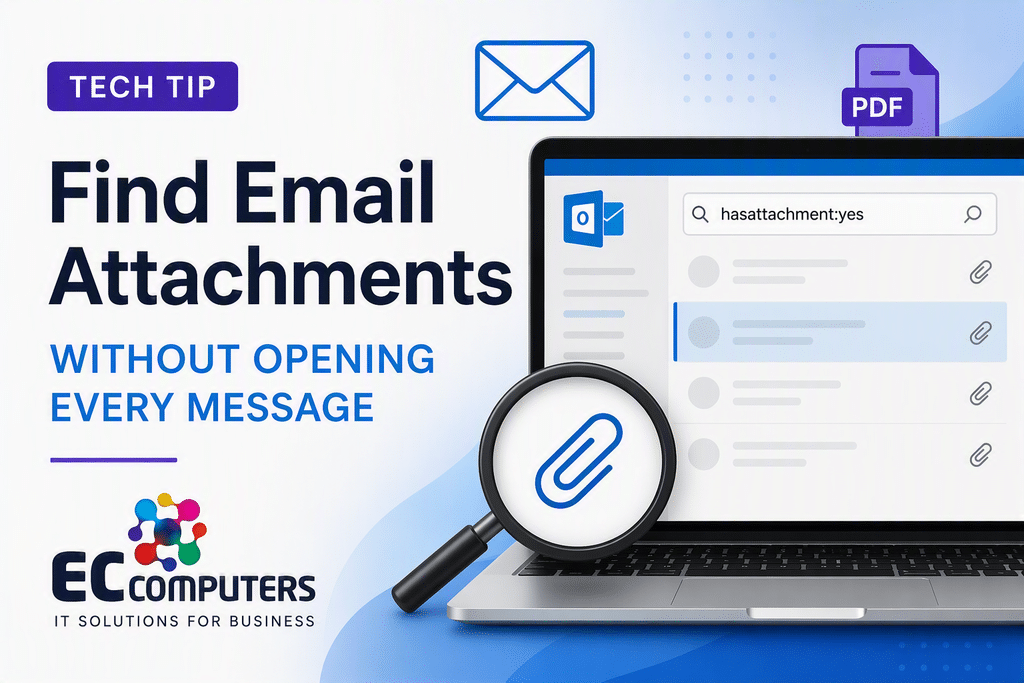
In Outlook, you can narrow your search to messages that contain attachments.
Try entering:
Plain Text
hasattachments:yesShow more lines
into the Outlook search box.
This helps remove all those attachment-free emails from the results, making it much easier to find what you’re looking for.
Make the search even more useful
The real trick is combining attachment searching with other information you remember.
For example, if you remember that Sarah sent you an invoice with an attachment, type this into the Outlook search box:
Plain Text
from:Sarah hasattachment:yes subject:invoiceShow more lines
This tells Outlook:
from:Sarah→ only show emails from Sarahhasattachment:yes→ only show emails containing an attachmentsubject:invoice→ only show emails with “invoice” in the subject
You can make it simpler too. If all you remember is that John sent you the document, try:
Plain Text
from:John hasattachment:yesShow more lines
Or if you don’t remember who sent it but know the email was about a quotation:
Plain Text
hasattachment:yes subject:quotationShow more lines
Microsoft also confirms that Outlook provides built-in attachment filters, so readers who don’t want to type search operators can use Outlook’s search/filter controls instead
💡 EC Computers Tech Tip
Think of Outlook search like adding filters: the more you remember about the email, the narrower your results become.
If your business regularly emails documents backwards and forwards as attachments, it might be time to change the way you work.
With Microsoft 365, SharePoint and OneDrive, teams can store documents centrally and share links instead of creating multiple emailed copies.
That means:
- ✅ Everyone can work from the latest version
- ✅ Fewer duplicated documents
- ✅ Easier collaboration
- ✅ Better control over who can access information
- ✅ Less time hunting around in overloaded inboxes
One document. One location. Far less confusion.
Email is brilliant for communication, but it doesn’t have to become your company’s document filing system.
🚀 Could your Microsoft 365 setup be working harder?
Microsoft 365 has plenty of useful features that businesses never discover or fully configure.
At EC Computers, we help businesses get more from Microsoft 365, including Outlook, Teams, OneDrive, SharePoint, Entra ID and Microsoft 365 Business Premium.
If finding a document regularly involves searching through someone’s inbox, we can probably show you a better way.
👉 Talk to EC Computers
Want to make Microsoft 365 simpler, safer and more productive for your team?
Get in touch with EC Computers and let’s see where we can save you a few clicks.